
The short answer
When you run client discovery calls, design reviews, or advisory sessions on Mac, inviting a recording bot into Zoom or Google Meet puts clients on guard. Convoxa on Mac captures both sides of any call locally without joining as a participant, weaves dragged-in decks or screenshots straight into the note, and lets you ask Claude about past client commitments through a local, read-only MCP server.
Why consultants and founders ditch meeting bots
Client relationships rely on trust and ease. An unannounced “AI Notetaker has joined the meeting” banner makes prospects cautious about sharing real budgets, internal politics, or candid feedback — and enterprise clients frequently block third-party bots from joining Teams or Zoom rooms altogether.
Capturing locally on your Mac keeps the call strictly between the people in it (you still let the client know you're taking recorded notes, which takes two seconds and feels human).
The full client-call workflow on Mac
- Start from the menu bar in one click. Works with Zoom, Microsoft Teams, Google Meet, FaceTime, Slack Huddles, or any browser call. The menu bar icon turns red while recording without covering your screen.
- Drag in what's on screen. When a client shares a slide deck, wireframe, or pricing sheet, drag the screenshot or PDF straight into Convoxa's recording window. Convoxa reads it and writes it into the note where you discussed it.
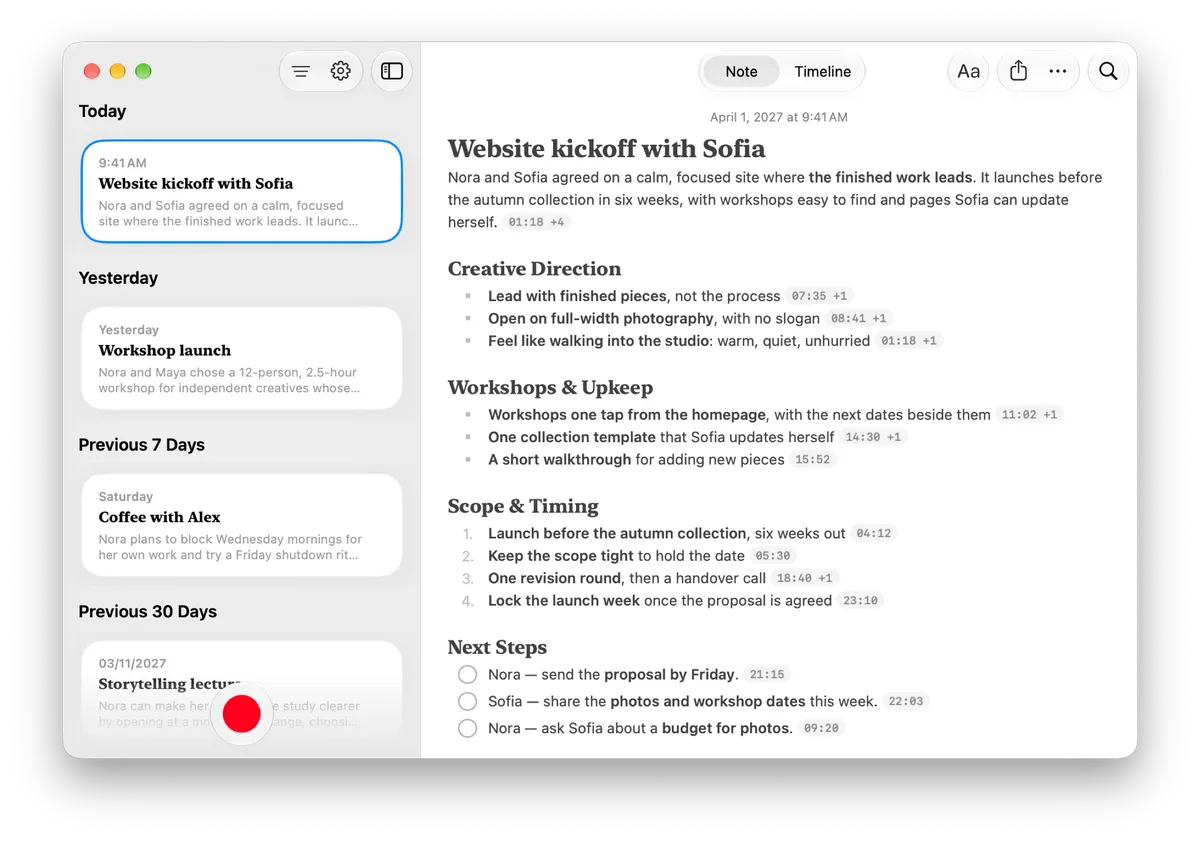
- Send a crisp recap five minutes after hanging up. Convoxa finishes with headings, key decisions, and a checklist of next steps. Tap any timestamp to confirm an exact budget number or deadline, edit to match your voice, and export as plain text, Markdown, or PDF.
- Prep for next week's check-in with Claude. Enable Convoxa's optional local MCP server in Settings → Connections, add it to Claude in one click, and ask “What did we promise Sofia on timeline and revision rounds?” before dialing in.
Client-call privacy checklist
| Client concern | How Convoxa handles it |
|---|---|
| “No third-party bots in our Zoom/Teams.” | Convoxa records locally on your Mac — nothing joins the call. |
| “Our NDA forbids uploading audio to the cloud.” | Use On Device mode on Apple silicon Mac — audio never leaves your machine. |
| “Are our calls used to train AI models?” | Never. Even in Cloud mode, audio is deleted as soon as transcription finishes and never used for training. |
| “Where are our meeting notes stored?” | On your own Mac and your personal iCloud account — not a shared vendor database. |
Want to double-check recording consent rules before your next multi-state or international call? Try our Recording Consent Checker or read how to connect Claude to your Convoxa notes.
Frequently asked questions
- Which video call apps work with Convoxa's bot-free Mac recording?
- Convoxa captures Mac system audio and your microphone locally, so it works with Zoom, Microsoft Teams, Google Meet, FaceTime, Slack Huddles, Webex, or any browser-based call — even when an enterprise client blocks third-party meeting bots.
- Does it work when I wear AirPods or headphones on a client call?
- Yes. Because Convoxa captures system audio directly from macOS alongside your microphone input, both sides of the conversation are recorded cleanly even when you wear headphones.
- How do I satisfy strict client NDAs when taking AI notes?
- Switch Convoxa to On Device mode on an Apple silicon Mac so transcription, speaker labels, and note generation run locally with Apple Intelligence and audio never leaves your machine. You can also turn off iCloud sync per device and keep the local MCP server disabled whenever a client requires strictly local-only storage.
- How does searching past client calls with Claude work?
- Convoxa for Mac includes an optional, read-only local MCP server (off by default in Settings → Connections). One click connects it to Claude Desktop so you can ask about past scope decisions, timelines, and commitments right on your Mac — without uploading your note archive to a cloud connector.